How to Find a Printer’s IP Address | Easy-to-Follow Steps
How to check printer IP address is a common query asked by millions these days, which is alright considering we have so many operating systems nowadays, with each of which has diverse setting options that lead to finding a printer’s IP address. In this guide, we’ll highlight the easiest and most effective methods to find your printer’s IP address without going through any hassle, like using additional software.
What is a Printer’s IP address?
It’s a 12-digit number that connects the printer to the internet or other devices you wish to connect with. At many times, navigating the printer’s IP address seems to resolve numerous printer-related problems.
An IP address is like the home address of your device, so when your printer has an IP address, your home device, i.e, computer, sends the printing info to that IP address. If your printer is not receiving the signals, the IP address is incorrectly configured.
7 Methods to Find Your Printer’s IP Address Easily
If you can’t find your printer’s IP address, here are the best ways to find it on different platforms. These methods are tested and verified by the users using printers daily:
Method 1: Finding Printer’s IP Address on Windows
Connect your printer to your Windows PC, and finding its IP address will be a piece of cake. You can do it by using the control panel and the command prompt.
Via Control Panel:
- Go to Control Panel on your Windows PC.
- Find Devices and Printers.
- On the printer icon, right-click to go to the Printer Properties.
- In the Ports tab, find the port that is checked. Your printer’s IP address will be right next to it.
- If it’s not visible, click Configure Port to see the information.

Via Command Prompt
- Press Windows + R and type cmd, and press Enter.
- Enter netstat-r in the command.
- You may see your printer’s IP address if it’s connected to the system.
Method 2: Finding Printer’s IP address on macOS
Finding a printer’s IP address on macOS is very easy and neat process, just follow these steps:
- Go to System Settings > Printers & Scanners.
- On the left pane, click on your printer.
- The IP address will be shown on the right, under Location or Options & Supplies.

Method 3: Finding Printer’s IP Address from Printer’s Display Menu
Modern printers have a display screen sufficient to show you your printer’s IP address.
- On the LCD or touchscreen, go to Settings > Network or Wireless menu.
- Find TCP/IP, Wi-Fi Status, or Network Settings.
- You can see the IP address of your printer here.
:max_bytes(150000):strip_icc()/how-to-find-a-printer-ip-address-4176356-1-5bb1469ec9e77c002638a750.JPG)
- Navigation paths for HP Printers: Home > Wireless Settings > Network Configuration
- Navigation Paths for Canon Printers: Menu > Setup > Device Settings > LAN Settings > Confirm LAN Settings
- Navigation paths for Epson Printers: Menu > Network Settings > Wi-Fi/Network Status
Method 4: Finding Printer’s IP Address by Printing Network Configuration Page
Ideally, this is the easiest method of all! All you have to do is command the printer to print a configuration page. On the page, you can see a wide range of information about your printer, like IP address, MAC address, SSID, and Network Mode (Wi-Fi or Ethernet). Follow these steps:
- HP Printers: Press the Wireless and Information buttons simultaneously.
- Canon Printer: Setup > Device Settings > LAN Settings > Print LAN Details.
- Epson: Setup > Network Settings > Print Status Sheet.
Method 5: Finding Printer’s IP Address via Router’s Connected Devices
Accessing the router’s admin page will let you trace printer’s IP address in the list of connected devices. Do follow this:
- Open a browser and go to your router’s login page.
- Sign in with your credentials.
- Go to Connected Devices or DHCP Client List.
- Find your printer’s name.
- Your IP Address should be visible next to it.
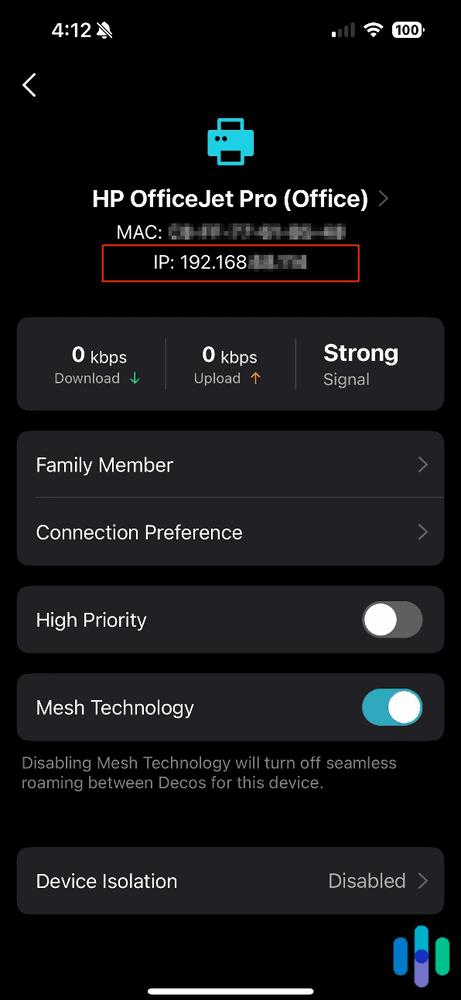
Method 6: Finding Printer’s IP Address using Printer App on Mobile
Through the printer’s companion app on your mobile phone, you can find your printer’s IP address:
- Go to Settings.
- Find Printer’s Info or go to Network Settings.
- There it is!

Method 7: Finding Printer’s IP Address on Chromebook
If you own a Chromebook, you can still see your printer’s IP address by following these steps:
- Find the Status located at the bottom right corner of the Chromebook screen.
- Go to Settings > Advanced Settings.
- Scroll down, under the Printing section, choose Printers.
- Look for your printer’s name and find the details like the IP address.
What You Can Do with Your Printer’s IP Address
Finding your printer’s IP address can help you in so many ways. Like if you are troubleshooting network issues, an IP address of your printer allows you to access the printer’s web interface, or even connect to new devices and monitor the activity log. You can also set a static IP address, whether working from the office or remotely.
Common Issues in Finding a Printer’s IP Address
The methods mentioned above will get you the printer’s IP address in no time, but still, if you are having any of the following issues, you can take the steps accordingly:
- Printer is Missing from the Device List: Turn on your printer and connect it to the same network as your PC or Laptop.
- The IP Address shown is 192. x.x.x: As a connection error, you can resolve this by reconnecting your printer to the WI-Fi, or restarting the router, which helps too.
- If there is no display screen on the printer, try finding it via the printing configuration page.
Protecting Your IP Address
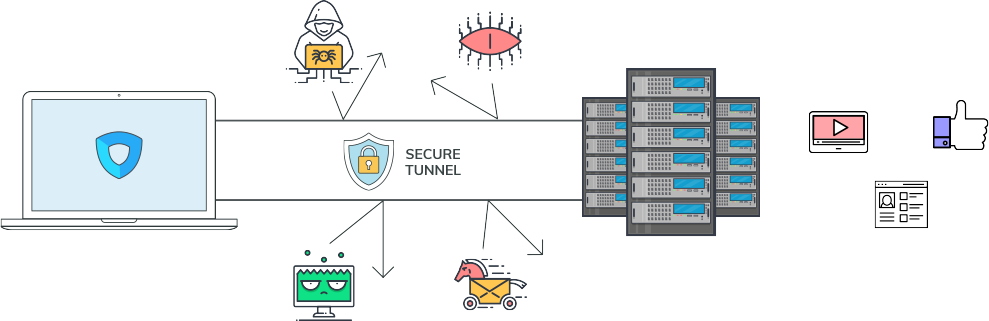
If your connection’s or printer’s IP address is exposed, it will leave you vulnerable to various cyberattacks. If any of your device’s IP addresses is exposed to the world, it will also expose critical information about you, like your browsing history, location, and access to personal data, including photos, videos, and doc files.
A VPN is amongst the best cybersecurity solutions in 2025, as it encrypts your connection and hides your IP address; two of the ideal things you must have to keep cybercriminals away from your personal data. Furthermore, Ivacy VPN employs 256-bit encryption for your connections and has a no-logs policy with an IP-leak protection feature to keep you safe in today’s digital world.
Conclusion
Finding your printer’s IP address helps you resolve many connectivity issues. The aforementioned methods are the most tested to help you find the IP address quicker than other online methods.
It doesn’t matter what type of printer you use; knowing its IP address will keep the connected devices and documents safe. If you are suspicious of your device’s security, suggested tools include Ivacy VPN, which keeps all your personal data somewhere safe and free from malicious trackers.

Frequently Asked Questions
What IP address should I use for my printer?
You can use a static IP for your printer, which is in the router’s range, such as 192.168.1.200. This will avoid IP conflict as well as render a stable connection.
How do I find the printer’s IP address without a screen?
Printing the configuration page is the best thing you can do if your printer doesn’t have a touchscreen.
How do you manually add a printer with an IP address?
You can add a printer to a new device by choosing the manual setup option, where you have to enter the printer’s IP address under IP Address of Host Name. Make sure your device and printer are connected to the same network.
How to enter the printer’s IP address in the browser?
On your browser’s address bar, enter the IP address of your printer, and it will direct you to the Embedded Web Server. This will allow you to change settings, update firmware to the latest version, and monitor the usage.