How to Change NAT Types for PS, Xbox & PC in 2025
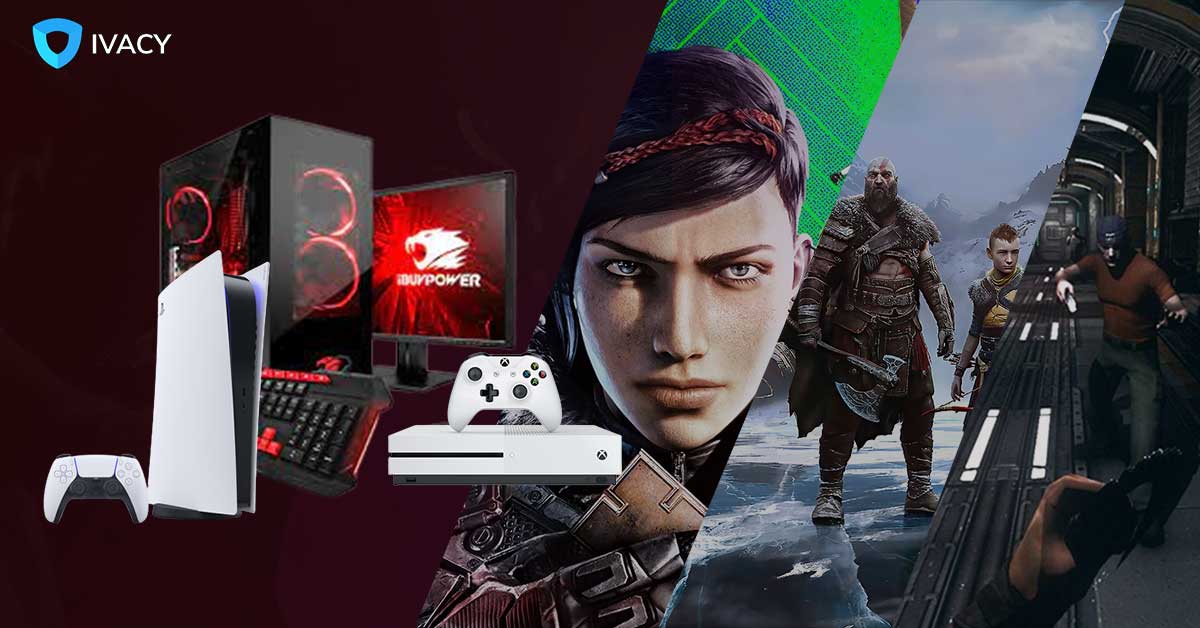
What’s the deal with NAT types in online gaming? Millions of gamers struggle every day with improving their gameplay since they get kicked out of the lobby or are unable to join multiplayer gaming sessions due to the notorious NAT Type error.
This guide contains detailed information about NAT types, which one is suitable for the smoothest gameplay, and how to change NAT types for PS, Xbox, & PC.
Does NAT Type Matter in Gaming?
In the realm of networking, NAT (Network Address Translation) is a process that allows multiple home devices, including mobile phones, tablets, and Smart TVs, to connect with a single IP address. This IP address is usually provided by your ISP, which is further handled by your internet router.
Now, NAT type matters alot in gaming since it determines how freely you can communicate with other players within a game or a lobby. Strict NAT Type usually disrupts a smoother gaming experience because it checks every corner of the data packet, which is an unfavorable thing for gamers. Open NAT Type is, therefore, highly endorsed by gamers, through which they can roam freely in any game server.
Different Types of NAT for Gaming Explained
In 2025, only the insane gaming enthusiasts know about the use of different NAT types to improve connectivity. These are:
Open NAT
Also called Type A or Type 1 NAT, which connects your console directly to your modem without any device involved. However, it’s not recommended due to a lack of security. An Open NAT Type allows you to host games and have uninterrupted gaming sessions, with seamless voice chat. Matchmaking really gets easier when you are using Open NAT Type.
Ardent gamers do not recommend open NAT Type as it exposes your gaming device to the public internet, wreaking havoc in the form of cybersecurity threats. When you are using different NAT types, your goal shall be to have improved functionality with minor risks. Open NAT doesn’t have a perfect balance in such a case.
Moderate NAT
Moderate NAT or Type B/Type 2 NAT is when your device connects to the router that has been configured for improved incoming gaming traffic. Moderate NAT Type is considered the ideal NAT Type for gamers so far, which is achieved by employing Port Forwarding and UPnP techniques.
Moderate NAT allows you to connect all players, except for those using the Strict NAT Type. NAT Type 2 may be better than NAT Type 3, but it still needs to be changed to NAT Type 1 for a smooth gaming experience on PS, Xbox & PC. It’s a perfect balance of performance and security, according to most gaming addicts in 2025.
Strict NAT Type
NAT Type 3 is undoubtedly the worst possible scenario for any PlayStation gamer. One would need to switch to NAT Type 1 instantly to get the full gist of the gaming console. And by forwarding ports on the internet router correctly, NAT Type 1 can be achieved.
How to Check NAT Type on PS, Xbox & PC
You can check your NAT Type on any gaming console, whether it’s a PlayStation, Xbox, or PC. The trick is to locate the right place:
- On PlayStation: Settings > Network > Test Internet Connection > Once the test is done, your NAT Type will be shown on the screen.
- On Xbox: Settings > General > Network settings > Test NAT type.
- On PC: NAT Type will be shown in the game’s network settings.
How to Change NAT Types on PS, Xbox and PC
Changing the NAT Type on PS, Xbox, and PC is quite easy if you follow the instructions correctly. The first method is sufficient and wouldn’t ask you to employ any other, so let’s get to it.
Change Your NAT Type by Enabling UPnP
Universal Plug and Play is a technique that allows gamers to open any necessary port via the router’s request. UPnP is considered the best method for multiplayer gamers with marked security protocols. To enable it, you have to follow these steps:
- Go to your router’s admin panel on a browser.
- Log in with your credentials.
- Under Advanced settings, find the UPnP settings.
- Please turn it on and save the changes.
- Restart your PC or gaming console.
Change Your NAT Type by Port Forwarding
To port forward the NAT router, this is what needs to be done:
- Find the router’s IP address.
- Log in to the internet router using the router username and password.
- Navigate to the Port Forwarding section of the router interface.
- Add a new port forwarding rule to the router settings.
- In the Protocol section, set either TCP or UDP, depending on the application that requires it.
- Enter the port number that needs to be forwarded.
- Enter the device’s IP address to which the port needs to be forwarded
- Save the changes made on the router.
Ports for Call of Duty: TCP: 3074, 27014-27050; UDP: 3074-3079, 3478, 4379-4380, 27000-27031, 27036
Ports for Minecraft: TCP:25565
Ports for PS Network: TCP: 80, 443, 1935, 3478 to 3480, UDP: 3478 to 3479
Ports for Xbox Live: TCP: 3074; UDP: 88, 500, 3074-3075, 3544, 4500
What are the risks of port forwarding?
Port forwarding helps route incoming and outgoing traffic from devices on a private network to a public network. Most people open ports to connect to Minecraft servers, connect to remote devices, or download large P2P applications. But opening ports on a router behind NAT or CGNAT is not as easy as it seems.
To put it simply, CGNAT (Carrier-grade Network Address Translation) is a mechanism that translates IPv4 addresses into another set of IPv4 addresses. Even if your router is configured for port forwarding, you can’t open ports if your ISP performs CGNAT.
How to Set Up Port Forwarding Behind CGNAT in 2025
The most convenient way for routing ports behind NAT or CGNAT is to utilize the services of a reliable VPN. Many VPNs in 2025 have specialized features that assist with port forwarding on gaming consoles and PCs. Here is how to set up Ivacy VPN and use it for port forwarding:
- Subscribe to any VPN plan.
- Download and install the VPN client.
- Log in to Ivacy VPN with the Ivacy VPN login credentials.
- Navigate to the subscription tab.
- Then, select the Configure tab.
- Set the desired port forwarding settings.
- Finally, click on Apply.
Final Words
In conclusion, if you are looking for seamless connectivity, Open NAT Type should be your choice. While Moderate NAT Type is good with minor issues, Strict NAT Type is not something you would go with since it offers poor performance, and you’ll face trouble in joining lobbies.
Fixing it via UPnP method, or port forwarding method will absolve your device from connectivity issues while keeping the online risks to minimum. But if you are gamer who is also cautious about online security, make sure to pair it with Ivacy VPN that helps you bypass geo-restrictions, beats ISP throttling on PS, Xbox and PC while maintaining your online privacy.