How to Block Websites on Android in 2025

- Why Block Websites on Android?
- How to Block Websites on Android without Apps
- How to Block Websites on Different Web Browsers on Android?
- Block Websites in Google Chrome on Android
- Block Websites in Opera on Android
- Block Websites in Edge on Android
- Block websites in Mozilla on Android
- Block Websites on Android with a VPN
- Conclusion
With internet access everywhere and the heavy use of Android smartphones nowadays, many individuals are asking about methods to block specific websites or a bunch of websites. While blocking websites can protect us, particularly our children, from potentially harmful information, it can also help us focus on other essential things in life, like education, family, and a job. As a result, in this post, Android users will learn how to block websites on Android in 2025, with or without using an app.
This guide will also provide third-party options and explain how the best VPN services in 2025 can fit into your effective cybersecurity.
Why Block Websites on Android?
Blocking a particular website or multiple ones on Android has many reasons, and some of the main ones are listed below:
- Some people impose the Parental Controls feature to protect their children from malicious websites like those dealing with illicit material, violence, gambling, etc.
- Blocking phishing websites is a potential attempt to impose rigid cybersecurity. These websites are loaded with malware and phishing attacks that can steal all of your sensitive data.
- Blocking websites like TikTok, Facebook, Instagram, and those intended for just entertainment tends to increase productivity in users. It’s also a stronger attempt to improve your social and mental skills.
- Avoid pop-ups that provide misleading or harmful warnings on their Android smartphones.
How to Block Websites on Android without Apps
The best way to block websites on Android phones without using any external app is by enabling built-in features like Google Family Link and Digital Wellbeing.

Google Family Link is a perfect tool to manage your child’s Android device. Here’s how to set it up:
- Install the Google Family Link on your child’s and your Android devices from the Google Play Store.
- Make a supervised account for your child.
- Link your Google account to the other device by following the instructions in the app.
- From your parent device, open Family Link and select your child’s account. Go to Manage Settings > Google Chrome.
- Block sites you want to; you can either allow approved sites only, which you have to add yourself, or block websites manually.

Enabling Digital Wellbeing and Focus Mode allows you to minimize the distraction caused by your phone. You can simply do this by:
- Go to your Android phone’s Settings.
- Locate Digital Wellbeing & Parental Controls.
- Find Focus Mode or Work Mode.
- Tap on the settings icon and make a list of the apps causing distractions, which could be any.
- After enabling the Focus Mode, the apps you chose will be paused, and the websites connected to these apps will also be blocked.
How to Block Websites on Different Web Browsers on Android?
- Google Chrome
- Firefox
- Opera
- Microsoft Edge
Block Websites in Google Chrome on Android
If you are unable to block websites on Google Chrome while using an Android device, you can simply download AppBlock from the Play Store. The steps are mentioned here:
- Install the AppBlock app on any Android device
- Choose “Try Quick Block,” then “Choose what to block,” and “See all.”
- Navigate to the Webs tab
- Enter the website URL you want to block, and tap Save.
Block Websites in Opera on Android
Since Opera does not allow users to block undesirable websites on their Android smartphone, they will need to install a specialized program such as AppBlock.
- Install the AppBlock app on any Android device.
- Choose Try Quick Block, select Choose what to block, and see all.
- Navigate to the Webs tab.
- Enter the website URL you want to block, and tap Save.
Block Websites in Edge on Android
While Edge allows users to select which websites can be accessed by their family members using their Microsoft account, the process is a little cumbersome. Android users may easily control blocking by downloading the AppBlock app. While it is not officially a parental control program, it contains all the functionality consumers require.
- Install the AppBlock app on any Android device
- Choose “Try Quick Block,” then “Choose what to block,” and “See all.”
- Navigate to the Webs tab
- Enter the website URL that anyone wants to block, and tap Save.
Block websites in Mozilla on Android
Users must install the LeechBlock NG add-on for Android devices to block specific websites on Mozilla.
- In Mozilla, click the three dots in the upper-right corner and choose “Settings.”
- Select “Add-ons” from the “Advanced” menu.
- Touch the + symbol next to “LeechBlock NG,” then tap “Add” to confirm the selection.
- When the add-on is activated, navigate to its “Settings.”
- Add the websites to ban and adjust the other settings. “Save Options & Close” will appear.
Block Websites on Android with a VPN
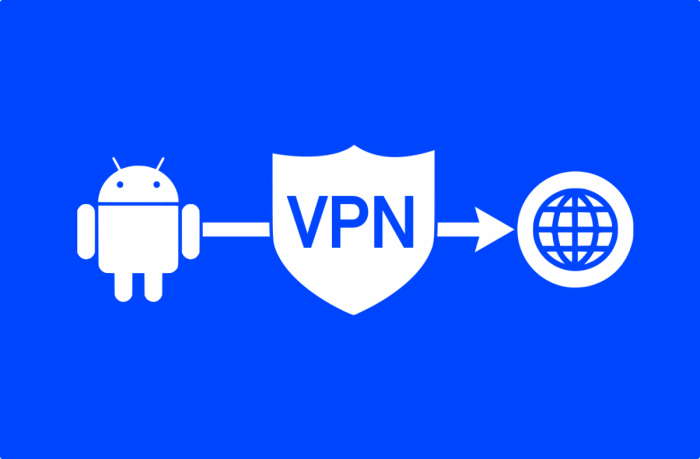
Some may wonder, “What does a VPN have to do with blocking websites?” While a VPN’s primary function is not to block content (it’s to encrypt your traffic and hide your IP address), it plays a crucial role in the broader picture of staying safe online.
When you use the methods above to block websites, you are controlling what you or your family can access. Best Android VPNs in 2025, like Ivacy VPN, can be integrated into Chrome, Firefox, and Edge plugins and bolster online security by preventing all types of tracking.
Conclusion
If you want to block websites on Android, no matter what the reason is, do it the right way! It’s only the start of digital security that helps parents to keep their children in line without distractions. Doing this will also help you save a tremendous amount of time to do creative stuff or maybe go out and interact with others.
Finally, Google Family Link, Digital Wellbeing, Focus Mode, Browser Plugins, external apps, and a VPN are some of the fastest and safest methods to block illicit and malicious websites on Android. For VPN enthusiasts, having a reliable one is the second step to giving you full control over your security.