How to Allow Camera Access on Snapchat – 2025 Guide

The most demanded multimedia messaging app, Snapchat, had over 420 million active users in 2025. The app is known for its auto-deleting content that involves photos and videos. With the currently introduced features like AR Lenses, Bitmoji integration, and Spotlight from viral videos, Snapchat won’t be able to deliver any of these features unless you have camera access.

Without allowing camera access, Snapchat cannot record any snaps, which means you can’t use the app like it’s meant to. You need to allow camera permission, which, again, based on your operating system, varies.
Why Allowing Camera Access on Snapchat

Without camera access, there is no point in using Snapchat because then you won’t be able to do the following things:
- Your phone camera is the most important thing for taking snaps.
- Snapchat AR lenses and filters can only be used via the camera.
- You can video call in Snapchat only if you have camera access.
- Scanning for translation, object recognition, and product search.
There are two types of messages from Snapchat that appear when your camera is disabled. It’s either “Allow Camera Access” or “Oops! Snapchat is a camera app”. Some Snapchat users simply get a black screen, which also means they need to allow camera access to the app.
Methods to Allow Camera Access on Snapchat
There are three methods to allow camera access on Snapchat: one for Android, another for iOS devices, and the last one is to do it from Snapchat. We’ll explain them separately so there is no complication left.
How to allow Camera access on Snapchat on Android
If you are using Android version 12 to 14, you might consider the following ways to allow camera access on Snapchat:
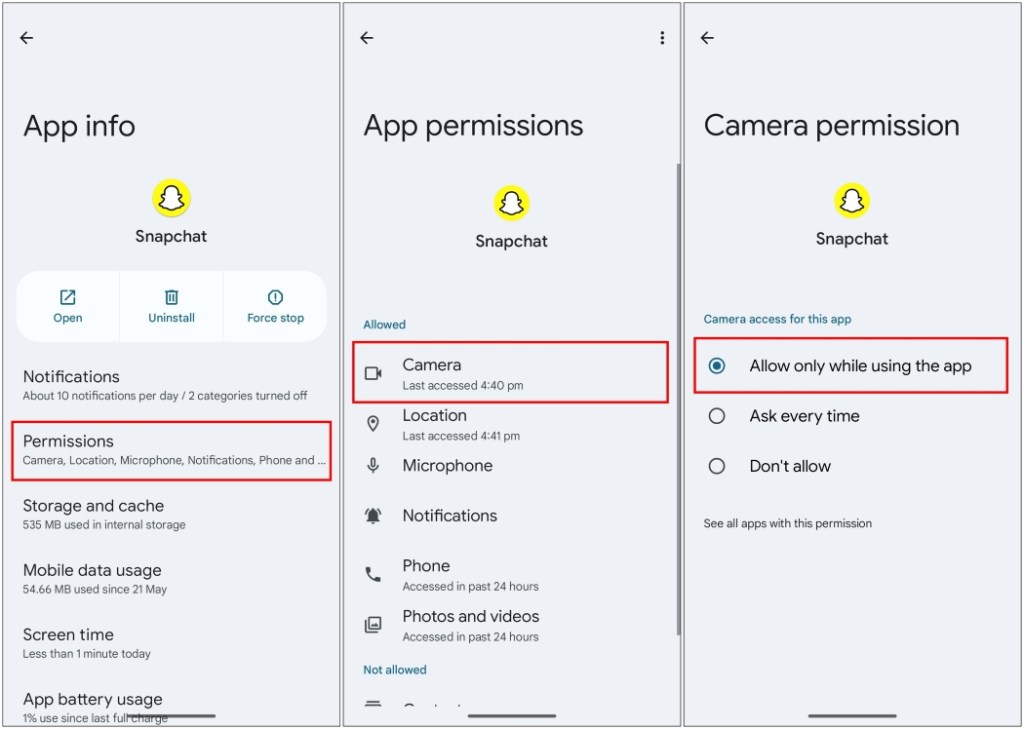
- You can do this via App Permission by going to Settings > Apps > Snapchat.
- Tap Permissions > Camera.
- You have to choose Allow only while using the app, and it’s done!
:max_bytes(150000):strip_icc()/B5-AllowCameraonSnapchat-annotated-82428d3371a940c5b3cb6c4ca49afd20.jpg)
For Android users with Permission Manager, they can simply go to Settings > Privacy > Permission Manager > select Camera > choose Snapchat > Allow while using the app.
Some of the latest Android mobile phone models have a master “Camera Access” which you can enable by going to Settings > Privacy > Privacy controls.
How to allow camera access on Snapchat iOS
You can allow camera access on Snapchat on iOS devices by three different methods:
Method 1
- Go to your iPhone or iOS device Settings.
- Scroll down and tap on Snapchat.
- Toggle the camera option ON or to green.
- Turn on your microphone as well if you want to hear the sound in videos.
:max_bytes(150000):strip_icc()/A3-AllowCameraonSnapchat-annotated-66507023d4be49f48c8f6160af3070b4.jpg)
Method 2
- Go to iOS privacy menu: Settings > Privacy & Security > Camera.
- Locate Snapchat from the list.
- Turn on the camera access.
How to allow camera access on Snapchat from inside the App
Snapchat has a built-in shortcut for camera access for both Android and iOS devices. And it’s simple to do:
- Launch the Snapchat App.
- Touch your profile icon located in the top left.
- Go to Settings > Permissions > tap Camera.
Once you are in this, just turn on the camera access.
Troubleshooting Camera Access Issues with Snapchat
Generally, the methods mentioned above will allow camera access on Snapchat. But even if the problems still occur, the following ways can be used to fix them.
Restarting your device can help minimize the issue because it clears an optimum amount of space in the RAM and improves the performance of the device afterwards.
Updating the Snapchat app should be the common practice, or else the latest features won’t be available on your device, like AR Lenses and filters. Downloading Snapchat’s latest update is easy on Android and iOS; you just have to update the app from the Google Play Store and App Store, respectively.
Clearing the Snapchat cache can also improve storage capacity and speed. This will not delete any of your stored Snapchat messages or snaps, and the saved photos will also be saved in your gallery. This is how you clear caches on Snapchat:
- Open the Snapchat app, and touch your profile picture
- Go to the Settings.
- Scroll down until you see “Clear Cache”.
- Once tapped, you will get a warning message, so select Clear and proceed to clear your phone cache.
You can also try reinstalling the Snapchat app, which fixes the camera access issue most of the time.
Since Snapchat is an internet-based application, it could cause camera issues due to a slow connection. So, check the connection speed and ensure a steady connection to avoid camera problems on your phone.
Snapchat Camera Access and Privacy

Some things you should know about Snapchat camera access and how it affects your privacy:
- On the latest Android and iOS devices, Snapchat can only access your device’s camera when the app is being used or running in the background.
- AR and filters by Snapchat collect user data by sending it to their server to add effects.
- Snapchat also collects Metadata from its users, which involves time zone, location, apart from images and videos.
- Snapchat snaps are meant to be temporary, but you can also take screenshots of the images and record the videos through screen recording.
Precautions When Using Snapchat Camera

A few safety precautions you can take while using Snapchat camera are:
- Do not use public Wi-Fi because the frequency of cyberattacks is at its peak there. Public networks can compromise the sensitive snaps that are not meant for everybody.
- Review app permissions regularly, and allow camera access while the app is in use only.
- Snapchat AR lenses require regular updates to work smoothly.
- Use a VPN to secure your connection while using Snapchat. It also enables you to access snaps or profiles restricted in your region.
Conclusion
Being fun, visual, and super-fast are the pillars of Snapchat, but you can’t avail any of its features without camera access. Following this guide, you can get to use Snapchat with its maximum potential, while maintaining control over your privacy when using the app.
If you want to take this to the next level, combine Snapchat with a VPN and witness how it protects you and your entire connection from hackers and ultra-modern tools used by cybercriminals. Using a Snapchat VPN is the upgraded and much secure way to enjoy the App’s latest features in 2025 without compromising your sensitive and private data.