How To Find a Roku IP Address And How To Change It?
We all know online streaming is at its peak, and like many brand names, Roku has turned out to be one of the most popular ones with its seamless interface and multitude of options available for entertainment. Roku offers viewers an expandable ecosystem that provides instant access to thousands of free and paid channels. You only have to imagine a story, and Roku has it for you!
Managing your Roku device’s IP address is crucial nowadays, as we often encounter various issues such as network troubleshooting, interrupted streaming, and poor streaming performance. This guide will help you set up the Roku IP address and the easiest methods to change it for seamless entertainment.
What is the IP Address for Roku Device?

What is an IP address for any device? It’s a digital identity that enables communication between your device and the broader internet. In the streaming realm, Roku’s IP address identifies your device, consisting of numerical digits separated by periods.
Question: Why Would You Want to Find Roku’s IP Address?
To the majority of streamers, an IP address is merely a combination of digits that we often overlook daily. However, finding your Roku device’s IP address in certain situations can help resolve a wide array of network or device-related issues. A Roku IP address is very different from your public IP address. A public IP address helps you connect to the internet, whereas a Roku IP address helps you diagnose and fix technical problems in your network.
Under the following conditions, it is imperative to find your Roku’s IP address:
- Sometimes, your Roku device may lag and experience connectivity issues. Finding its IP address will resolve the main issue, which is causing slow internet speed.
- If you want to manage your network, such as setting the bandwidth speed to Roku’s device or for troubleshooting, finding the Roku IP address from your router’s settings can be useful.
- Roku does not connect to third-party apps, but if you want to connect Roku with your smartphone or other home system, having an IP address will do you a big favor.
How to Find Roku IP Address

An IP address to your Roku device is there somewhere; all you have to do is apply any of the four methods to find it:
1. Finding Roku IP address with the Remote
If you want to find your Roku device’s IP address with the Remote only on all Roku TVs, sticks, and streaming boxes, follow these steps:
- On your Roku remote, press Home.
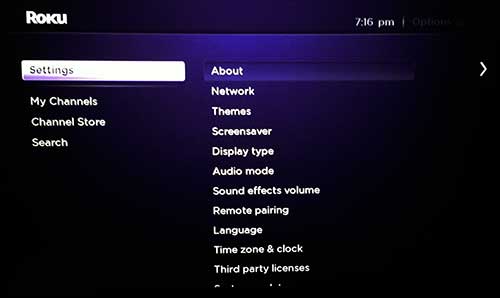
- Go to Settings > Network > About.
- You can find your network details here, along with Roku’s IP address.
2. Finding Roku IP address with Roku Mobile App
You can find your Roku’s IP address without a remote. The trick is to download and install the Roku app on your mobile device and follow these steps:
- Connect your mobile phone and Roku device to the same network.
- Download the Roku app from the Google Play Store or the Apple App Store.
- Go to the connected devices at the bottom.
- Select your Roku device from the list.
- Now, go to the Settings > System Info to find your Roku device’s IP address.
3. Finding Roku IP address via Remoku Browser Extension
Millions of people use the Remoku Browser Extension on their Chrome to watch movies and TV shows on their laptop. You can also find your Roku IP address through this:
- Go to the Google Chrome webstore and install the Remoku extension.
- Open the Remoku extension and go to Settings.
- You will find your Roku device IP address under My Network.
4 Finding Roku IP address via Router
Your router’s admin panel can show you the IP address of all connected devices:
- Go to the browser and insert your router’s IP address in the address bar.
- Go to the device list and find the connected device.
- Find Roku and click to see the details, including the IP address.
Why Change Roku IP Address

- You can change your Roku device’s IP address if you’re experiencing network-related issues. Users may also experience internet connectivity issues, which can arise due to IP conflicts and network congestion. Changing your Roku’s IP address will result in establishing a new connection, thereby evading any previous network issues.
- With your Roku device’s IP address changed, you can access content that is geographically restricted. This way, streamers can access a multitude of TV shows and movies from different countries, making it ideal for travelers.
- You can count on enhanced privacy and security after changing your Roku IP address. Once the IP address is changed, all the third parties, including trackers, advertisers, and phishing attacks, won’t be able to reach you. This will keep you anonymous all the time, reducing cyberattacks to a substantial extent.
- You can dodge potential DDoS attacks that targeted your previous IP address.. Changing it will dodge these attacks and minimize the damage.
How to Change Your Roku IP Address

While it’s not permissible to change your Roku device’s IP address normally, you have to go to specific network settings that can allow you to do so:
1. Rebooting the Router
If your network assign dynamic IP address using DHCP, all you need to do is turn off your Roku device for a minute and then restart the router by unplugging it for 10 seconds and plug it back. A new IP address will be assigned to you once your Roku device is on.
2. Use a Static IP instead of Dynamic
If you want to assign a static IP address, you can do it via router settings:
- Go to the router’s admin panel.
- Go to the LAN Setup or the DHCP Reservation area.
- Add a new reservation using Roku’s MAC address
- Assign any IP address you want within the network’s range.
- Save and restart the Roku device.
3. Use a VPN
A VPN (Virtual Private Network) is the most effective way to change your Roku’s IP address. Used by millions, top-notch VPNs are used to bypass regional limitations in order to access geo-restricted content.
You can set up a VPN on your router first, then connect your Roku device to the same router. This setup will not just change your IP address but also encrypt your internet connection throughout, making your online activities difficult to track.

Conclusion
Even if you have lost your Roku device’s remote control, changing Roku’s IP address is still possible. There are numerous ways to find the Roku IP address, and changing it would also give you leverage, like access to worldwide content, while staying fully secure in the online world.
If you want next-level security and privacy tools, try Ivacy VPN, for it has all the essential features to protect your cybersecurity in 2025.
Frequently Asked Questions
How to connect Roku to a phone without a remote?
You can use the Roku app to manage your Roku device and connect it to any network without a remote. For this, you need to download the Roku app on your mobile and connect it to your device.
Can you give Roku a static IP address?
No, Roku does not allow users to use a static IP address.
Can I use Roku in another country?
Yes, a person can use Roku in virtually any country in the world. They will need to connect through Ivacy VPN, however, to bypass the geo-restriction in some countries.