How to Check if your Laptop Camera has been Compromised
It’s a peculiarly interconnected world where we, from time to time, forget that many of our device cameras are spying on us. The horrors of technology depicted in Black Mirror and Mr. Robot are gradually taking a real form, as many users in 2025 are complaining that their laptop cameras have been compromised.
One of the surveys conducted by HP reveals that the majority of online users are aware of “camfecting” or laptop camera threats. It also emphasized that 79% of users are aware that their laptop camera can compromise their privacy, while 59% have initiated covering their laptop camera to feel more secure. Still, many users are subjected to camfecting every day due to a lack of awareness.
This guide explains how to identify signs of a laptop camera being compromised and how to prevent webcam spying.
Signs Your Laptop Camera May Be Compromised
If you notice the following signs, it may be an attempt to control your laptop’s camera:
Check the Camera Indicator
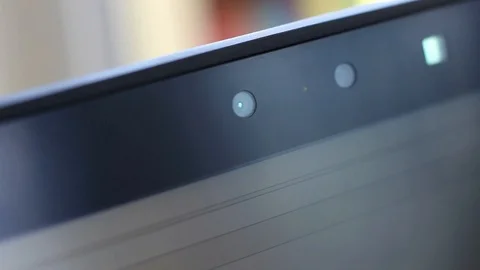
Most laptops have a camera LED indicator that turns on when the camera is in use. While not in use, check if the light glows or flickers, which could indicate various issues, such as applications running in the background or that your camera is being hacked.
Unexpected Camera Crash
If your camera app crashes unexpectedly, or you see an error like “Camera is already in use” while starting Zoom or any other app, this could be due to other applications running in the background or someone currently trying to access your laptop camera.
Suspicious Background Processes
Some malware tends to have names that are similar to what’s in your system. To check this, open Task Manager on Windows and Activity Monitor on macOS and look for the unknown processes. Finding a camera app running without any reason will be a sign of a hacking attempt.

Unknown Files and Recordings in Your Laptop
If your laptop camera is hacked, it will start recording anything automatically. Check the folders where videos and images are stored; if you catch anything suspicious, run a diagnostic scan.

High Internet Usage on Laptop
At times, you can notice the sign that your laptop might be consuming a massive amount of internet data. This may be a warning sign, as malicious software that has penetrated your laptop’s camera may send data to a remote server. However, you can use a VPN to resolve this issue.
How to Prevent Webcam Spying
You can protect your laptop camera from hackers if you follow these things:
1. Cover Up Laptop Camera
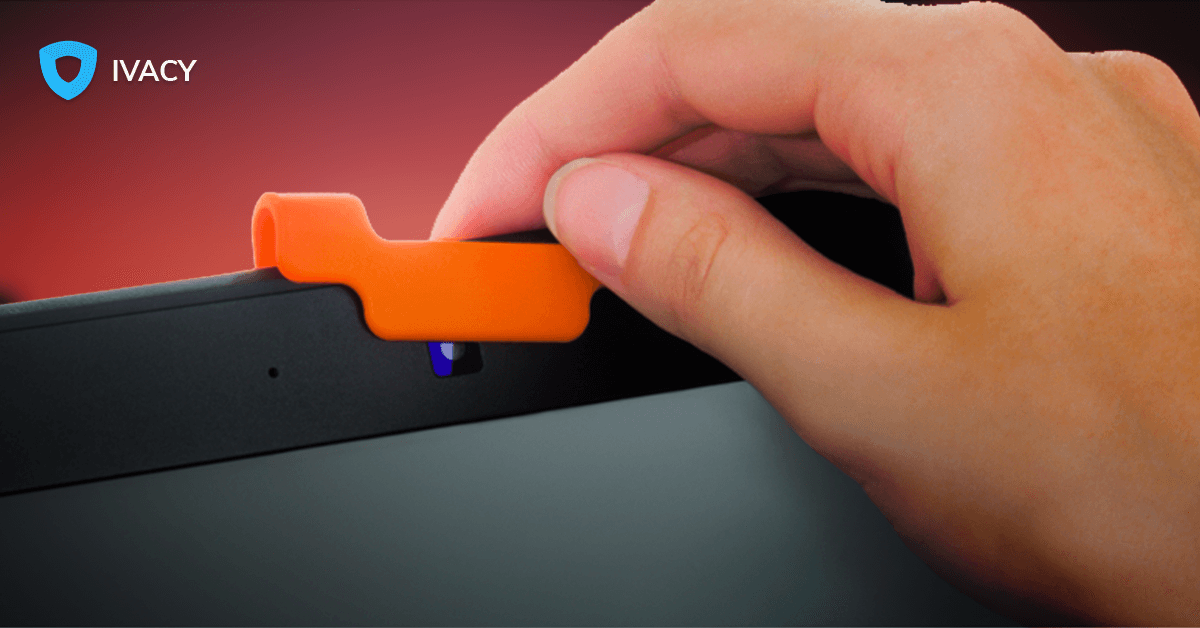
The first step to prevent web spying is to cover up your laptop camera lens. It will prevent any form of hacker’s attempt to pry into your laptop camera since they can’t see anything at all. The simplest way to do it is by placing a piece of black tape over the lens or any other available laptop lens cover.
2. Don’t Trust the Indicator Light
LED indicators surrounding your camera will turn on when video recording begins. However, that’s not always the case, as sometimes the light is turned on, indicating that your camera app is in use by someone else.
3. Watch Out for the Microphone
If your laptop camera can be hacked, your microphone would be an easy target. Disabling the microphone in the device settings menu is the simplest solution to overcome this. On Windows 10, you can disable the laptop camera and microphone manually by going to Device Manager.
4. Check App Permissions
Your browser extension and apps constantly alert you about webcam permissions, so if you have them enabled, the light may turn on even when you’re not using it. Deny the webcam permission to all apps, and if you have already allowed some, ensure that you revoke them once your business is complete.
5. Perform Regukar Updates
Keeping your apps and operating system up to date is a good cybersecurity measure. Latest updates will have fixes to the evolving bugs that seek vulnerabilities in your system.
6. Use a VPN
One of the best ways to keep your laptop camera from being hacked is to become virtually invisible. But how’s this even possible? A VPN (Virtual Private Network) allows you to protect your privacy and take proactive security measures. So, if you are online and visiting sites that you like, your original IP address will not be shown to hackers, and your connection will be encrypted, which is the first thing they dig for to get you.

What To Do If Your Laptop Camera Has Been Compromised
Some fast efforts you can make are:
- Disconnect your laptop from the internet to stop any further remote access.
- Run a full malware and virus scan via antivirus software and other tools integrated in Windows and macOS.
- Look out for unknown software; if something looks unfamiliar, delete it.
- Resetting your passwords will help you not losing your accounts.
- Factory reset is the last resort, which becomes indispensable if this issue keeps happening.
Conclusion – Don’t Wait for the Visible Signs
The virtual world is a cruel place where some malicious hackers steal users’ data for extortion and other vile purposes. One of the attempts involves hacking into your laptop’s camera, which captures your daily life, and also leaking your other vital information, such as financial records. Even Mark Zuckerberg protects his laptop camera, because privacy isn’t guaranteed for everyone.
Physically, sticking a tape on your laptop camera’s lens can work, or you can go for systematic approaches, which involve running a full scan, staying informed about the latest threats by installing regular updates, and using a VPN to encrypt your entire device and connection to avoid future hacking attempts.